Tuesday, April 12, 2011

Fighting the Malware Battle

Fighting the battle with malware can really hurt your business when you have to spend a great deal of your IT budget on software to protect your machines from infection. Here are some tips to do it for free.

First, let's start with a definition of "malware" so that we are on the same page. Malware is malicious software (e.g. viruses, trojans, worms, adware, etc.) that is designed to secretly install on your computer with the sole purpose of wreaking havoc to the code or harvesting data.

There are a few free tools we'd like you to be aware of that will help you create a "first line of defense" against an attack. While no "over the counter" software is a guaranteed cure-all, you can certainly decrease the effects of malware and save your organization dollars over the course of the year as a result of fewer attacks.

You can fight malware with these free tools:
  1. Combofix - this software will assist in tracking down and removing malware. Make sure to disable your antivirus software first before running Combofix. 
  2. CCleaner - this handy tool does two things well. It cleans the Windows registry and removes cached web data. It's a good idea to do a backup of your registry before running this tool, but plan on experiencing a faster computer with less problems afterwards.
  3. Microsoft Security Essentials - looking for an antivirus program that is effective and causes little drain on your system? This tool is it, and the cost is zero.
  4. Malwarebyes - it always amazes us when clients are surprised that they need anti-spyware software in addition to antivirus protection. While antivirus software is effective at protecting against viruses, there is a long laundry list of other types of malicious code (a.k.a. malware) that you have to protect your machine against. That's where Malwarebyes comes into play.
  5. Clonezilla - one of our favorite tools for creating "clones" of your machine so that you can perform a restore in the future should something catastrophic happen to your data.
There are many tools on the marketplace for businesses to use to protect their data and increase their company productivity. These 5 programs are a great place for you to start.

Just keep in mind that not all computer problems are created equal and there is still a possibility that you will run into a situation that requires professional intervention. We are happy to assist if such a situation were to arise; however, we do feel it is important to educate our clients and enable them to implement steps they can perform on their own.

Call MAX Communications at 847-348-3489 or connect for Remote Support via our website: www.HelpMeMax.com and "Share your Screen" to allow us to assist while you watch!

Thursday, April 7, 2011

How to Create a Home Computer First-Aid Kit

As each day passes, and we enter further into the technology age, people become more reliant on computers to play vital roles in their personal and business lives.

It's interesting to note that although this phenomenon continues to progress each year, the average computer user does not take any preventative measures to preserve their personal data, programs, and overall daily workflow.

That is why we decided to dedicate this article to helping our clients plan ahead to prevent any dreadful circumstances that can come from relying so heavily on a device that is not preserved in some backup state.

We've prepared a quick guide to creating your personal "home computer first aid kit," you can have peace of mind in knowing that your pictures, videos, programs, files, settings, banking data, etc. are recoverable should your computer crash or hardware fail.

3 Elements of a "Home Computer First-Aid Kit"
  1. You'll want to start by bringing your computer to a perfect state of operating. Many times this can be acheived by re-installing Windows, updating your Windows updates, optimizing your personal settings, installing all of your favorite programs, organizing your personal folders and files, etc. We realize this is a lengthy step to take, but it is important to establish a "perfect state of operation" where your computer is running at optimal performance.
  2. The next step is to create a "system image" of your hard drive. There are various tools you can use to create an image of your computer. In layman's terms, a "system image" is like taking a picture of your hard drive that can be stored on a DVD (or two). That "picture" can then be restored onto your hard drive at any time. If your computer ever crashed, or you were interested in purchasing a new hard drive, this "system image" would come in handy as a convenient way to restoring your computer back to that perfect state.
  3. The next step in creating a "Home Computer First-Aid Kit" is to choose an online or offline backup system. There are websites online that will automatically backup your personal files (e.g. pictures, videos, music, software data, etc.). You can also purchase an external hard drive that has auto-backup capabilities.
  4. Once you have your "system image" and auto-backup system in place, you'll have peace of mind in knowing that your data, programs, settings, etc. are all recoverable.
We realize that some of these steps are advanced and not everyone would feel comfortable performing them. Many of our clients hire us for the re-install, system imaging, and auto-backup installation. You are welcome to implement these steps yourself. If you feel you would rather a professional handle them, we are happy to assist.

We cannot stress enough how important it is to protect your computer. We receive calls every week from clients who've lost everything, and it can be an extremely sudden and costly situation to be in. You can prevent this from happening to you if you go in with a plan.

Contact MAX Communications at 847-348-3489 if you have questions, or would like assistance with these tips.

Wednesday, February 9, 2011

What You Need To Know About Computer Drivers

Home Computing Tip-of-the-Month:
Windows Device Manager
Computer drivers are small pieces of software that tell your operating system (i.e. Windows 7) and other software programs how to communicate with a piece of hardware.  Recently we have had several instances where updating the printer drivers solved performance issues.

Printers, for example, come packaged with drivers to install that tell your operating system exactly how to print information on a piece of paper. Sound card drivers tell your computer how to create audio signals that the card can output to your speakers.

It's important to understand this, because as you update your operating system, install new programs, install new hardware components (i.e. printers, cameras, speakers, etc.), download sytem updates from the Internet, etc., your existing drivers will likely become outdated and cause your hardware components not to function properly.

If you run into a situation where your hardware is not working (e.g. your printer no longer prints, your speakers no longer play audio, etc.), you will likely need to run a driver update.

Drivers are updated in Windows by using a driver update wizard from within Device Manager. About.com has a great article on Device Managers that will provide you with more details. You can also do a search online at the manufacturer's website (usually under "Support") for Driver/Software Updates to help you do the job. If this does not sound like something you feel comfortable performing yourself, you can always consider hiring a computer consulting firm, like MAX Communications, to assist you.

** Call us at 847-348-3489 and we can even assist you via Remote Control (visit our website at www.HelpMeMax.com for more info) **

Wednesday, February 2, 2011

Why and How You Should Recycle Your Old Computers

Home Computing Tip-of-the-Month:
We've decided to focus this month's Home Computing Tip-of-the-Month on an important global effort to curb electronic waste. Below, you will find free computer recycling options for you to safely dispose of your electronics in a way that will not harm the environment.

Did you know that up to 43 million metric tons of electronic waste are not recycled each year? Instead, they are dumped into landfills and end up in third-world countries where children and parents strip the toxic material down for cash. Many of our clients that we speak to about this don't realize that computers can contain chromium, nickel and zinc. Even worse, LCD monitors can contain mercury.

The following graph shows the dire state of recycling in 2007 of TVs, Computer Products, and Cell Phones.
How to Recycle:
If you have a local Staples store near your home, you can take any old Dell products to the customer service desk, and Staples will recycle them for free. Staples will recycle non-Dell products for $10. Each item is bagged, sealed, and then recycled by Eco International. Staples also will give you $2 in Staples Rewards for any ink cartridges you drop off.

There are many Staples alternatives to recycling your computers, such as EcoSquid, Earth 911, My Green Electronics, TechSoup, RBRC, and many more. For a comprehensive list of local recycling resources, kindly visit the United States Environmental Protection Agency's page.

As a side note: MAX Communications is offering the additional service of WIPING any DATA off the old hard drives, then supplying you with a certificate for your records to show that the data was cleared prior to the computer being recycled.  For more on this service to protect the privacy of the information you had stored, contact us today at 847-348-3489.


Wednesday, January 26, 2011

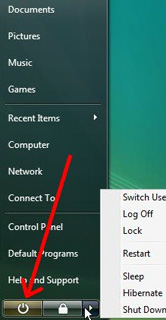
What To Do If Your Windows XP, Vista or 7 Operating System Is Not Shutting Down Properly

Is your Windows operating system hanging up when you try to shut it down? Are you forced sometimes to hold the power button to force it to shut down?
This is something that can happen after a virus update, after a new software install, or for no reason at all.

The first thing you will want to do is run your anti-virus software to check for a malware infection. If no infection is found, then the next step is to determine which software program on your computer is causing the hangup.

While there is no quick fix that guarantees you will find the faulty program on your own, one option you have is to review the programs that are set to auto-start when you turn your computer on. Here's what to do:
  1. Click the START button and type msconfig into your search box.
  2. Click the START-UP tab. This tab will show you all the programs that are set to auto-start with your computer.
  3. Go through the list of programs with a checkmark and uncheck the ones that you know for sure do not need to startup with your computer (e.g. - AIM, Quicktime, etc.).
  4. After you have made your changes, save them and restart the computer.
  5. After you restart your computer, you can always go back through steps 1.-3. and CHECK the box next to programs you WANT to startup, in case you need them.
CAUTION: Changing your startup configuration can negatively impact your computer's functionality if you deselect a critical process that is needed to run. Only make changes that you are 100% certain about. 

You are welcome to call us (847-348-3489) if you are not sure and we will be happy to assist you.  We can even connect in remotely and you can learn as you watch us make the changes.  For more info on this service, check out our website at www.HelpMeMax.com and download CrossLoop.


Tuesday, January 25, 2011

Can my PC run Windows 7?

Can my PC run Windows 7? Microsoft Windows 7 Home Premium UPGRADE DVD

If you scroll down that page, you will see
a large BLUE Button with white lettering to
[ Download the Windows 7 Upgrade Advisor ]
Click that button to go to the page for the actual [ Download ] Button. When Downloading, save the file to the Desktop, so you can find it easily.

In general, if your PC can run Windows Vista, it can run Windows 7. But if you're not running Windows Vista, or are just not sure if your system is ready to run Windows 7, there's a quick way to do a simple check. (Most systems purchased since September 2009 will be compatible, if you have enough RAM and Disk Space available).

Just download, install, and run the Windows 7 Upgrade Advisor... You'll get a report telling you if your PC can run Windows 7 and if there are any known compatibility issues. If an issue can be resolved, you'll get suggestions for next steps. For example, it may let you know that you need an updated driver for your printer and where to get it.

Before you begin
Before you run the Windows 7 Upgrade Advisor, be sure to plug in any USB devices or other devices such as printers, external hard drives, or scanners that are regularly used with the PC you're evaluating.

Download the Windows 7 Upgrade  Advisor Beta
To run the Advisor, follow the install prompts, the LAUNCH the Advisor program and let’ er run…
Find out with the Windows Upgrade Advisor

After you’re finished and satisfied with the results, you might want to head over to the following page to learn more about the Upgrade Process, with some good tips on how to keep things running smoothly:
http://windows.microsoft.com/en-us/windows7/help/upgrading-from-windows-xp-to-windows-7

On the right side of that page are some links to other helpful resources.

What if I don't want to do it myself?
If the whole process seems to “daunting” for you, we can schedule a time to have MAX Communications come in and run it through the upgrade process.

Let us know if you have any other questions…Or just call 847-348-3489 - we're happy to help!

Thursday, December 16, 2010

What is a QR Code?

qrcode

You may have noticed these square blocks showing up in some places on print media and wondered what was going on.  This is known as a QR Code, short for "Quick Response" code.  It is a 2D version of a Bar Code, and can contain much more information. 

Originally developed for use with Inventory Control, this little square can contain Hyperlinks (such as the one on the left) that can be used in Print Media. 

You may be asking yourself..."Why is this useful?".  Imagine having a business card with a QR Code, or a Name tag, or a banner (or even a Billboard).  The opportunity for passersby to simply click with their smartphone and collect and store your information for later retrieval is astonishing, to say the least.  A smartphone user can click the above QR code and be launched to my website.  I could also create a QR Code for my YouTube Channel, or even this blog.

You can create your own QR codes for use in print media and other areas (such as mobile coupons) at a number of sites, including http://qrcode.kaywa.com/.

Check out the following article for more examples: http://searchengineland.com/what-is-a-qr-code-and-why-do-you-need-one-27588

There are also colorful alternatives coming onto the scene that you may find of interest.  For instance, Microsoft is developing a color version that allows for even more data capacity, and has some eye-appealing presentations.  To get a look at some of these, check out the article here: http://searchengineland.com/microsoft-tags-a-compelling-alternative-to-qr-code-hyperlinks-52315

Print-based Hyperlinks - who woulda thunk?!   The web is being integrated into our mobile lives and our lives are being intertwined with new ways of presenting information in a simple, yet powerful, format.

Can you foresee a day when you walk into an art gallery, click on a HCCB, and be able to watch the full time-lapse video of the history of a piece of artwork?  Or click on a QR code at a billboard and be launched to a live webcam feed?  Some interesting possiblities... wouldn't you agree?